
Download Photo Backup – Secure, Free Photo Backup Tool for Windows
Overview
In an era where digital cameras and smartphones generate thousands of images in a single shoot, safeguarding those precious memories has become a top priority. Photo Backup LE (Light Edition) is a free, Windows‑based backup tool designed to create reliable copies of your photos and burn them onto CD‑ROMs for long‑term storage. The software follows a straightforward wizard workflow that guides you from folder selection to the final disc burning stage, ensuring even non‑technical users can protect their image libraries with confidence.
Photo Backup LE not only copies files; it also generates a tidy HTML index on the disc, making it simple to browse the contents later without needing additional software. For users worried about hard‑drive failures, ransomware, or accidental deletions, having a physical, offline backup is a proven strategy, and this app makes the process as painless as a single click. The ability to schedule automatic backups means you can set it and forget it—your photos will be duplicated to a fresh CD at the time you specify, keeping your archive current without manual intervention.
Whether you’re a hobbyist photographer, a small business owner storing product shots, or a family archivist preserving holiday snapshots, Photo Backup LE offers a secure, low‑cost solution that fits naturally into any Windows workflow.
Key Features
- Wizard‑Driven Interface – Step‑by‑step guidance eliminates guesswork, making backup creation intuitive for beginners.
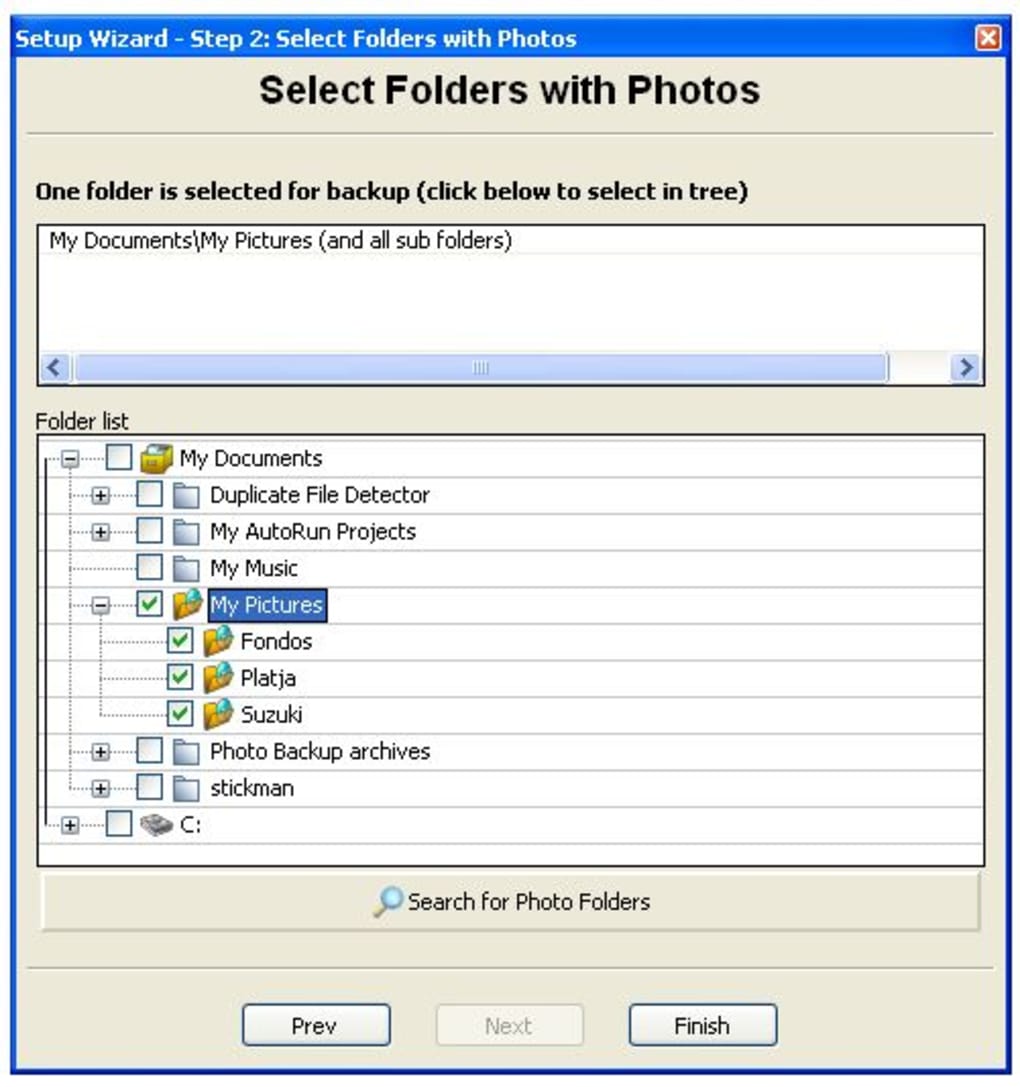
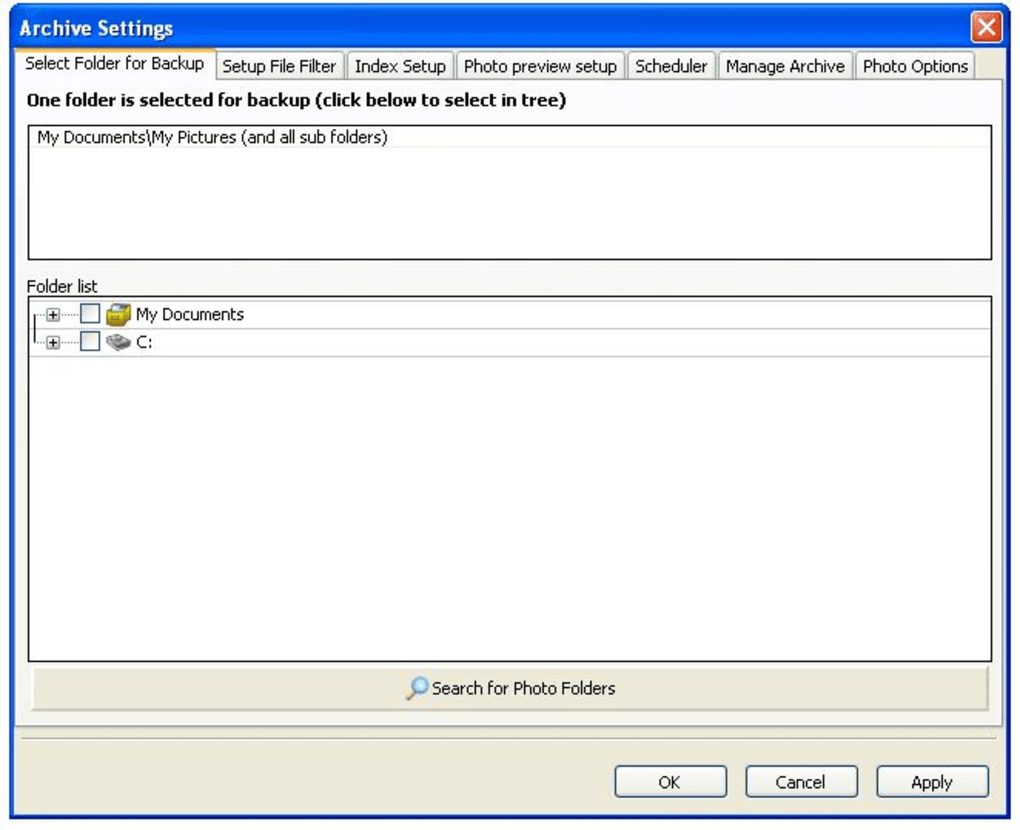
- Selective Folder Scanning – Choose specific directories or let the program scan your Pictures library automatically.
- Scheduled Backups – Set daily, weekly, or monthly backup times; the software runs in the background and fires automatically.
- CD Burning Engine – Integrated burning tool supports CD‑R and CD‑RW media, with speed control to reduce write errors.
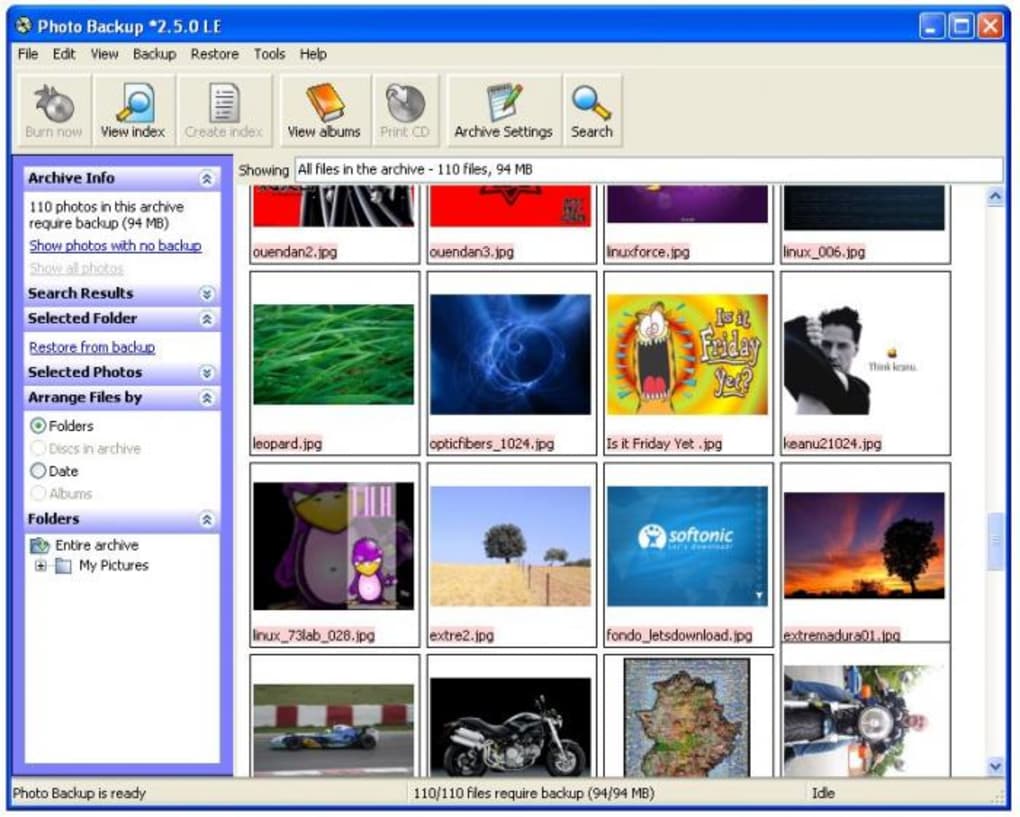
- HTML Index Generation – Each disc includes a browsable HTML page that lists thumbnails, file names, and timestamps.
- Compression & Verification – Files are copied without quality loss, and a checksum verification ensures the disc matches the source.
- Free & Secure – No hidden fees, no ads, and all operations run locally on your PC, keeping your data private.
- Lightweight Footprint – The installer is under 8 MB, and the application uses minimal system resources while running.
- Update Notifications – Optional automatic checks let you download the latest security patches and feature enhancements.
Installation, Usage & Compatibility
Getting started with Photo Backup LE is a breeze. Follow these steps to install the software and begin securing your images:
Installation Process
- Download the installer from the official website (link provided in the CTA at the end of this article).
- Run the
.exefile; Windows will prompt for administrator permission—click Yes to continue. - The Setup Wizard appears. Accept the End‑User License Agreement, then choose the destination folder (default is
C:\Program Files\PhotoBackupLE). - Click Install. The process typically completes within 30‑45 seconds on modern hardware.
- When installation finishes, select Launch Photo Backup LE to open the application.
Running the Backup Wizard
Upon launch, the main window greets you with a Start New Backup button. Clicking it opens the first wizard page where you can:
- Select Source Folders – Browse to your picture directories, or tick the Auto‑Detect Pictures option to let the program locate common folders (e.g.,
Pictures,DCIM). - Choose Destination Media – Insert a blank CD‑R or CD‑RW, then select the drive letter from the dropdown.
- Set Backup Schedule – Choose One‑Time, Daily, Weekly, or Monthly. For recurring jobs, the software creates a scheduled task in Windows Task Scheduler.
After confirming your choices, the wizard displays a summary page. Click Begin Backup to start copying files. During the process, a progress bar shows both file transfer and burning status. Once completed, the application automatically opens the generated HTML index on the newly burned CD, allowing you to verify that all images are present and correctly ordered.
System Requirements & Operating System Support
Photo Backup LE is built for the Windows ecosystem. Minimum requirements include:
- Windows 7, 8, 8.1, 10, or 11 (32‑bit or 64‑bit)
- Intel® Pentium 4 processor or newer (1 GHz recommended)
- 256 MB RAM (512 MB+ for optimal performance)
- At least 20 MB of free disk space for installation
- CD‑R/RW drive with write capability
Because the tool relies on native Windows APIs for file handling and disc burning, it does not currently support macOS, Linux, Android, or iOS. However, the developers have hinted at a cross‑platform version in the roadmap, so stay tuned for future updates.
Pros, Cons & Expert Review
Pros
- Completely free with no hidden charges or ad clutter.
- Wizard interface makes it accessible for users of any skill level.
- Scheduled backups eliminate the need for manual intervention.
- HTML index provides a quick, offline way to browse saved images.
- Lightweight installation and low CPU usage during operation.
Cons
- Limited to CD media; no direct support for DVD, Blu‑ray, or USB flash drives.
- Only available for Windows, excluding macOS and Linux users.
- No built‑in cloud sync—users must manage online backups separately.
- Automatic scanning of large picture libraries can be time‑consuming.
- Interface, while functional, feels a bit dated compared to modern UI trends.
Photo Backup LE delivers exactly what its name promises: a simple, reliable way to duplicate your photo collection onto a physical disc. The wizard workflow eliminates the typical learning curve associated with backup utilities, and the inclusion of an HTML index is a thoughtful touch that many competitors overlook. While the exclusive reliance on CD media feels a little nostalgic, it still serves a niche where offline, immutable storage is prized. Windows users will appreciate the low resource footprint and the ability to schedule backups without third‑party scripts. In short, for anyone who wants a free, secure, and hassle‑free photo archiving solution, Photo Backup LE is a solid choice.
Frequently Asked Questions (FAQ) & Conclusion
Can I use Photo Backup LE to back up videos as well as photos?
The tool is optimized for image formats (JPG, PNG, BMP, TIFF, etc.). While you can select video folders manually, the CD‑burning engine does not apply special handling for large video files, so it’s best suited for photos.
Is the backup process secure against data corruption?
Yes. After files are copied to the CD, Photo Backup LE calculates a checksum for each file and verifies it against the source. If any mismatch occurs, the software alerts you and suggests a re‑burn.
Do I need an internet connection to use the software?
No. Photo Backup LE runs entirely offline after installation. An internet connection is only required if you choose to check for updates or download the latest version from the website.
Can I burn multiple CDs in one session?
The free edition processes one CD at a time. For batch burning of multiple discs, you would need to run the wizard repeatedly or consider the paid “Pro” version when it becomes available.
What happens if the backup schedule conflicts with another task?
Photo Backup LE creates its own entry in Windows Task Scheduler with a low‑priority setting. If another high‑priority task runs at the same time, the backup will pause and resume once the system resources are free.
In conclusion, Photo Backup LE stands out as a free, secure, and user‑friendly solution for anyone looking to preserve their photographic memories on physical media. Its wizard‑driven approach, scheduled backups, and automatic HTML indexing provide a complete package without the bloat of unnecessary features. While the reliance on CD discs may limit its appeal to users who prefer modern cloud storage, the offline nature of the backup offers an unmatched layer of protection against ransomware and hard‑drive failure. If you’re ready to safeguard your images with a tool that’s both simple to use and reliably secure, click the download button below and start creating your first backup today.







